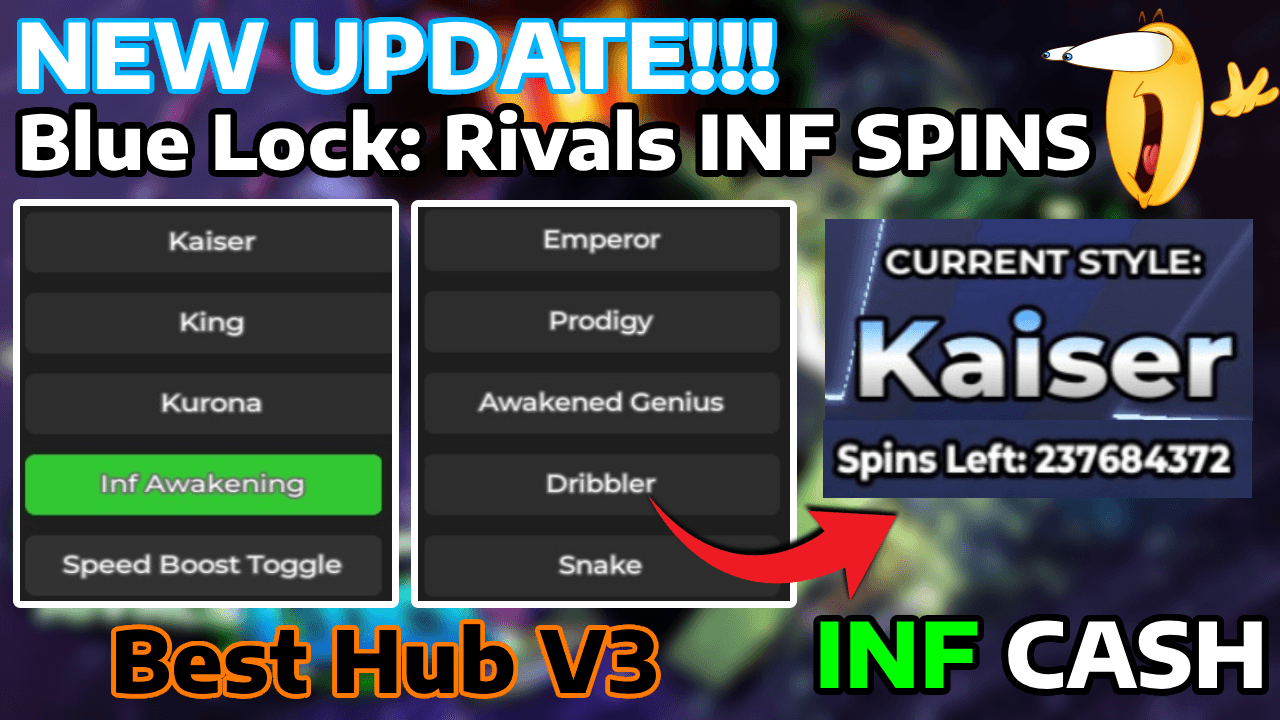
INF SPINS
3/24/2025|116 views
Reactions
Description
- Nel isagi
Features
- +kkk
- +AutoFarm
- +Esp
- +Fly
- +Noclip
Script
-- Crear ScreenGui
screenGui local = Instancia.new("ScreenGui")
screenGui.Name = "StyleGui"
screenGui.Parent = juego.Jugadores.LocalPlayer:WaitForChild("PlayerGui")

-- Función para habilitar el arrastre
función local enableDragging(guiElement)
    Arrastre local, dragInput, dragStart, startPos

    guiElement.InputBegan:Connect(función(entrada)
        si entrada.UserInputType == Enum.UserInputType.MouseButton1 o entrada.UserInputType == Enum.UserInputType.Touch entonces
            arrastrando = verdadero
            dragStart = entrada.Posición
            startPos = guiElement.Posición

            entrada.Cambiado:Conectar(función()
                si entrada.UserInputState == Enum.UserInputState.End entonces
                    arrastrando = falso
                fin
            fin)
        fin
    fin)

    guiElement.InputChanged:Connect(función(entrada)
        si entrada.UserInputType == Enum.UserInputType.MouseMovement o entrada.UserInputType == Enum.UserInputType.Touch entonces
            dragInput = entrada
        fin
    fin)

    juego:GetService("UserInputService").InputChanged:Connect(función(entrada)
        si input == dragInput y arrastrando entonces
            delta local = entrada.Posición - dragStart
            guiElement.Position = UDim2.new(
                startPos.X.Scale,
                startPos.X.Offset + delta.X,
                startPos.Y.Scale,
                startPos.Y.Offset + delta.Y
            )
        fin
    fin)
fin

-- Crear marco principal
marco local = Instancia.new("Marco")
marco.Tamaño = UDim2.nuevo(0, 300, 0, 400)
marco.Posición = UDim2.new(0.5, -150, 0.5, -200)
marco.ColorDeFondo3 = Color3.deRGB(40, 40, 40)
marco.BorderSizePixel = 0
marco.Padre = screenGui

--Añadir esquinas redondeadas al marco.
marco localCorner = Instancia.new("UICorner")
frameCorner.CornerRadius = UDim.new(0, 10)
frameCorner.Parent = marco

-- Agregar barra de arrastre al marco
dragBar local = Instancia.new("Marco")
dragBar.Tamaño = UDim2.nuevo(1, 0, 0, 30)
dragBar.Position = UDim2.new(0, 0, 0, 0)
dragBar.BackgroundColor3 = Color3.fromRGB(50, 50, 50)
dragBar.BorderSizePixel = 0
dragBar.Parent = marco

local dragBarText = Instance.new("TextLabel")
dragBarText.Size = UDim2.new(1, 0, 1, 0)
dragBarText.Text = "Arrástrame"
dragBarText.Font = Enumeración.Font.GothamBold
dragBarText.TextSize = 18
dragBarText.TextColor3 = Color3.fromRGB(255, 255, 255)
dragBarText.Transparencia de fondo = 1
dragBarText.Padre = dragBar

-- Habilite el arrastre para el marco usando la barra de arrastre
habilitarArrastre(marco)

--Crear botones para cada estilo
estilos locales = {"Sae", "Rin", "Chigiri", "Shidou", "Nagi", "Isagi", "Gagamaru"}
yOffset local = 40

local desiredStyle = nil – El valor predeterminado es nil, lo que significa que no se selecciona ningún estilo
local isRolling = false - Evita múltiples rollos al mismo tiempo

para _, styleName en ipairs(estilos) hacer
    Botón de estilo local = Instancia.new("Botón de texto")
    botón de estilo.Tamaño = UDim2.new(0, 280, 0, 40)
    styleButton.Position = UDim2.new(0, 10, 0, yOffset)
    styleButton.Text = nombreEstilo
    styleButton.Font = Enumeración.Font.GothamBold
    estiloButton.TextSize = 18
    estiloButton.TextColor3 = Color3.fromRGB(255, 255, 255)
    estiloButton.BackgroundColor3 = Color3.fromRGB(50, 150, 50)
    estiloButton.BorderSizePixel = 0
    styleButton.Parent = marco

    --Añadir esquinas redondeadas al botón.
    botón localCorner = Instancia.new("UICorner")
    buttonCorner.CornerRadius = UDim.new(0, 10)
    buttonCorner.Parent = estiloBoton

    -- Establecer la posición para el siguiente botón
    yOffset = yOffset + 50

    -- Funcionalidad de clic de botón
    styleButton.MouseButton1Click:Conectar(función()
        Si está rodando entonces
            print("Ya en marcha. Por favor espere.")
            devolver
        fin

        estiloDeseado = nombreDeEstilo
        print("Intentando obtener el estilo: " .. estiloDeseado)
        isRolling = verdadero

        tarea.spawn(función()
            jugador local = juego:GetService("Jugadores").LocalPlayer
            mientras está rodando hacer
                tarea.esperar(0.5)
                si jugador:FindFirstChild("PlayerStats") y jugador.PlayerStats:FindFirstChild("Style") entonces
                    estilo actual local = jugador.Estadísticas del jugador.Estilo.Valor
                    si estiloActual ~= estiloDeseado entonces
                        -- Activar la función Girar
                        juego:GetService("Almacenamiento replicado").Paquetes.Knit.Servicios.StyleService.RE.Spin:FireServer()
                        print("Acción de giro activada para el estilo: " .. estiloDeseado)
                    demás
                        print("El estilo se cambió correctamente a: " .. estiloDeseado)
                        isRolling = false - Detener el rodaje cuando se logre el estilo deseado
                    fin
                fin
            fin
        fin)
    fin)
fin

-- Crear el botón Ocultar/Mostrar
botón de alternancia local = Instancia.new("Botón de texto")
botón de alternancia.Tamaño = UDim2.nuevo(0, 100, 0, 40)
toggleButton.Position = UDim2.new(0, 10, 0, 250) -- Ubicado en el lado izquierdo de la pantalla
toggleButton.Text = "Ocultar"
botón de alternancia.Fuente = Enumeración.Fuente.GothamBold
Botón de alternancia.TextSize = 18
toggleButton.TextColor3 = Color3.fromRGB(255, 255, 255)
Botón de alternancia.BackgroundColor3 = Color3.fromRGB(150, 50, 50)
Botón de alternancia.BorderSizePixel = 0
toggleButton.Parent = screenGui – Adjunta el botón a ScreenGui, no al marco

--Añadir esquinas redondeadas al botón.
Botón de alternancia localCorner = Instancia.new("UICorner")
Botón de alternanciaEsquina.RadioEsquina = UDim.new(0, 10)
toggleButtonCorner.Parent = toggleButton

-- Funcionalidad del botón de alternancia: Ocultar/Mostrar la interfaz de usuario
local isVisible = verdadero
toggleButton.MouseButton1Click:Conectar(función()
    isVisible = no esVisible
    frame.Visible = isVisible - Solo alterna la visibilidad del marco, no toda la pantallaGui
    toggleButton.Text = isVisible y "Ocultar" o "Abrir" - Cambia el texto del botón a "Ocultar" cuando esté visible, "Abrir" cuando esté oculto
    toggleButton.BackgroundColor3 = isVisible y Color3.fromRGB(150, 50, 50) o Color3.fromRGB(50, 150, 50) – Ajusta el color del botón
fin)
Edited By: Unknown